
Blog
Mastering the Netflix Experience: Complete Guide to Seamless Streaming
Aug
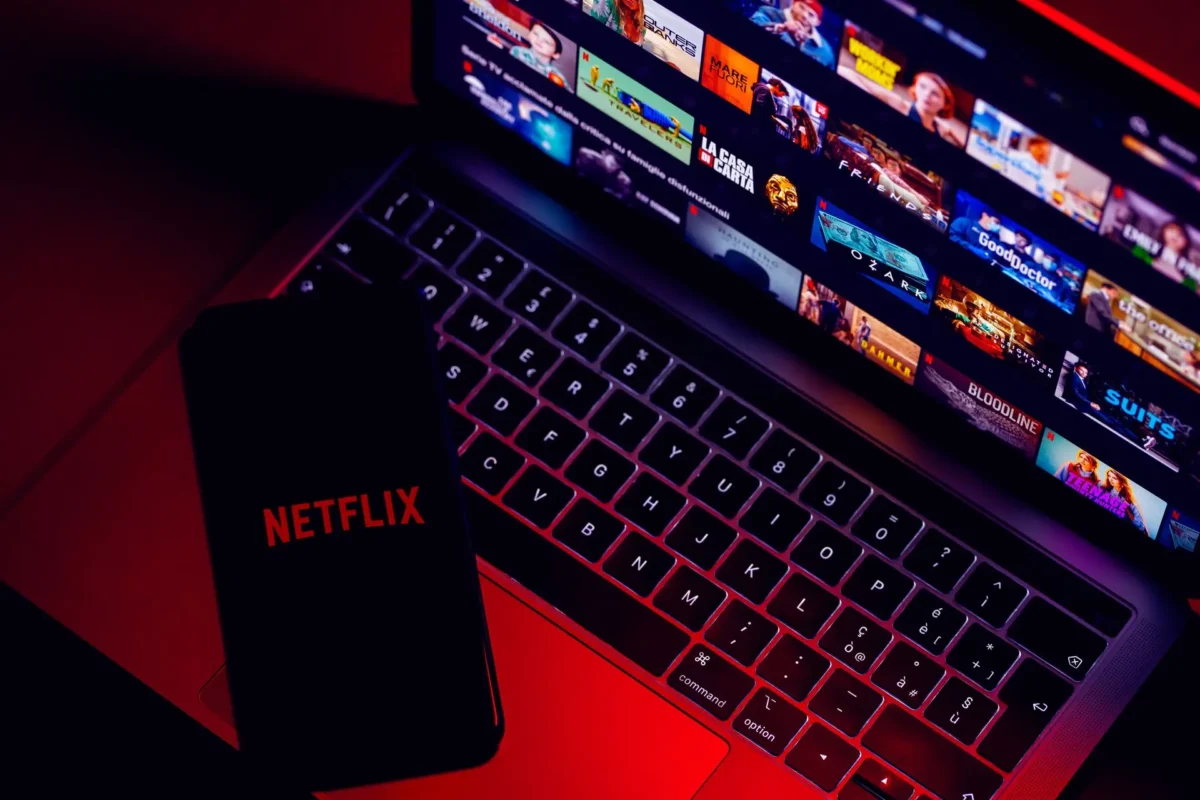
Netflix has revolutionized how we consume entertainment, offering a massive library of movies, TV shows, and even games. However, unlocking its full potential involves more than just hitting play. Whether you’re accessing the platform on a computer, smart TV, or mobile device, understanding its layout and settings can significantly enhance your viewing experience. This guide will walk you through the essential features and customizations you need to know.
Navigating the Platform
When you log into your account, you are greeted by the homepage, which typically features a highlighted trailer. Scrolling down reveals a curated selection of winning TV shows, your personalized list, top 10 trends specific to your region, new releases, and various genre categories.
The top navigation menu provides quick access to major sections: Home, TV Shows, Movies, Games, New & Popular, and My List. The Games section is a particularly exciting feature, especially for mobile users, offering a variety of titles to play directly through the app.
A powerful but often overlooked feature is the ability to browse by language. This isn’t just about finding content spoken in a specific tongue; it also uncovers movies or series filmed in or thematically related to a particular country or culture, broadening your viewing horizons.
Curating Your Watchlist
As you explore, you’ll inevitably find titles you want to watch later. Adding a movie or series to your list is simple: hover over the title (or tap on mobile) and select the “Add to My List” (plus icon) option. This feature creates a personalized hub for all your saved content, easily accessible from the main menu. If you change your mind, removing a title from your list follows the same simple process.
For those looking for something specific, the search function (typically a magnifying glass icon on the upper left or top menu) allows you to find titles by name, actor, or even specific themes, such as sports figures.
Managing and Customizing Profiles
Netflix allows multiple users to share a single account while maintaining personalized experiences through profiles. You can create a new profile by accessing the “Manage Profiles” section. This is crucial for separating viewing histories and recommendations.
When creating a profile, you have the option to designate it as a “Kids Profile.” This ensures that the content suggested is age-appropriate. Furthermore, Netflix provides robust parental controls, allowing you to restrict content based on maturity ratings (e.g., 7+, 10+, 18+) or even block specific titles completely.
For added security and privacy within a shared account, you can implement a Profile Lock. This feature requires a four-digit PIN to access a specific profile, keeping your viewing history private and preventing unauthorized access by other users on the account.
Beyond security, profiles allow for extensive customization. You can adjust the default language and, importantly, tailor the appearance of subtitles to your liking, changing the font, size, and color for optimal readability.
Essential Settings and Account Management
Diving deeper into your account settings reveals tools for managing your overall Netflix experience.
- Viewing Activity: You can review everything watched on a specific profile and even download this data as a file.
- Playback Settings: For users with compatible screens and internet speeds, ensuring your playback is set to “High” ensures you get the best possible quality. Note that streaming in 4K requires a premium membership plan.
- Membership and Billing: The account overview section is where you manage your subscription plan, update payment methods, and review your billing history.
- Security: This vital section allows you to change passwords and, crucially, monitor which devices are connected to your account. If you spot an unrecognized device, you can remotely sign it out to secure your account.
While many of these settings can be adjusted on any device, using a computer often provides the most comfortable interface for tasks like updating billing information or managing profile transfers, which allows you to move a profile (along with its history and recommendations) to a completely new account. By familiarizing yourself with these features, you can tailor your Netflix account to perfectly suit your viewing habits and preferences.
(Bonus Tip: While you’re streamlining your digital entertainment, if you ever need an easy way to digitize your subscription receipts or physical documents, checking out a handy tool like Camscanner is highly recommended.)
